1. Automatic parentheses:
Entries requiring parentheses show BOTH sides of the parentheses immediately. No need to worry about a lost right hand parenthesis.
 |
Notice how both parentheses appear when the sin function in entered. |
|
2. "Pretty Print": Math statements will "look" like true math statements once they are entered. Consider: 
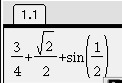 |
While entries may still be typed into the calculator as a single line entry, when the ENTER key is hit, these fractions will appear in a textbook stacked format. |
|
3. Templates and Symbols:
(Access with  - for access over TOP of a key.) - for access over TOP of a key.)
|
When using the templates, the process is much like using the software MathType. |
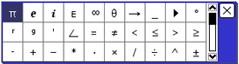
 Symbols - above book
|
|

Math
Templates
|
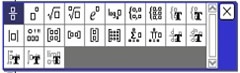
ESC will close a template.
|
 above ÷
 |
Quick Fraction template:
located above the division key.
|
|
Things to remember about templates:
Once "inside" a template, when you click on your choice, the template will print the entry and close.
If you want to close the template without having made a choice, hit  . .
|
|
4. Approximation:
If your calculator is set to AUTO and you enter 3/4, your answer will be 3 over 4.
If you want the decimal equivalent (approximation),
hit -  , ,
after entering the fraction.
|
|
5. Variable Names:
Be careful: This calculator is not limited to the 26 single letters of the alphabet as variable names. For example, the calculator will accept ab as a variable name.
On this calculator ab does not mean a•b.
Also, xy does not mean x• y. |
6. Defining Variables: When a variable is defined, it will turn BOLD.
(On non-CAS): Prior to "defining", if you type "a" and hit ENTER, you will most likely get a message telling you "The Variable is Undefined".
| (On CAS): If you type "a" and hit ENTER, you will get "a" as a response. |
|
7. Retrieving Past Entries:
To retrieve a past entry, use the TouchPad to up arrow until you highlight the entry you need. Simply press and that entry will appear on a new line. |
8. To Clear All Entries
To clear the screen of all entries (all history),  , #1 Actions, arrow right, #5 Clear History. , #1 Actions, arrow right, #5 Clear History.
#1 - right arrow - #5 |
|

 is above the
  key.
key. a
a key. (It is a vertical bar.)